( ulisp )
Lisp for Tiny Devices#
Energize your programming with Lisp! Its simple, consistent syntax makes it the life of the tech party.
With its inherent expressiveness, Lisp brings all the flexibility and efficiency that you need to rock devices like never before!
#
OMG that runs LISP!?!?#
Unlock the power of Lisp wherever you go!
With this level of versatility and efficiency, Lisp on tiny devices is a game-changer. Embrace the magic of Lisp on the move, enhance your skills and watch your horizons broaden.
#
Its so tiny ...and efficient!#
Size doesn't matter when it comes to capability! Lisp may be small, but its efficiency packs a punch. Compact yet with mighty performance where every line counts and every operation matters.
#
It not only works, it works well!#
Natively and efficiently run Lisp directly on bare-metal devices.
With a bespoke core, custom libraries and butter-smooth multitasking, effortlessly process thousands of Lisp functions per second with sub-millisecond performance!
#
But what can it do?#
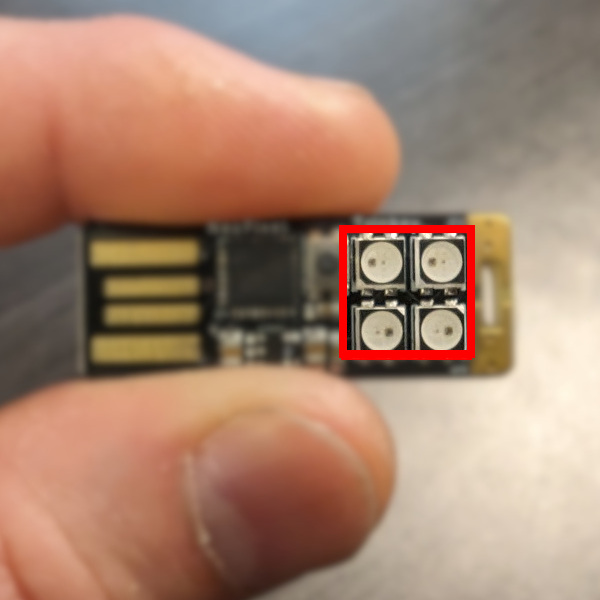
Independently program the dynamic array of RGB lights.
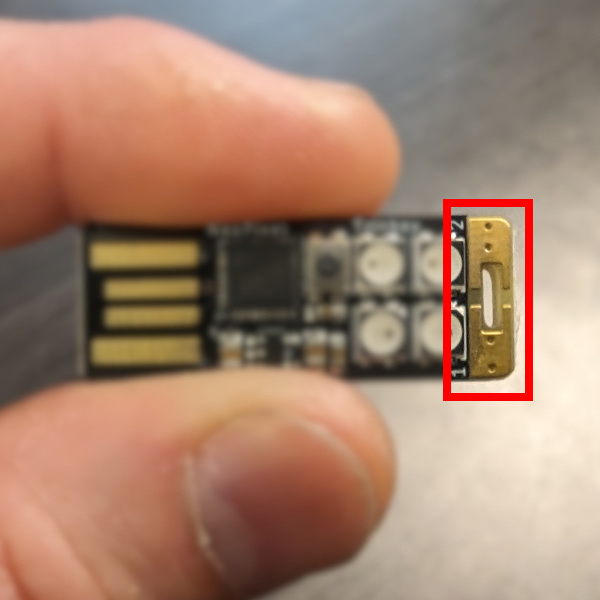
Seamlessly process inputs from dual touchpads, there are two!
#
Store and execute YOUR programs.#
Interactively develop the software using the Read Eval Print Loop (REPL) with any device capable of connecting to serial USB:
- Android phones
- PCs running Linux, Mac or Windows
- Chromebooks
- ...and more
Engage in interactive software development using:
- Visual Studio Code
- Emacs
- ...and more
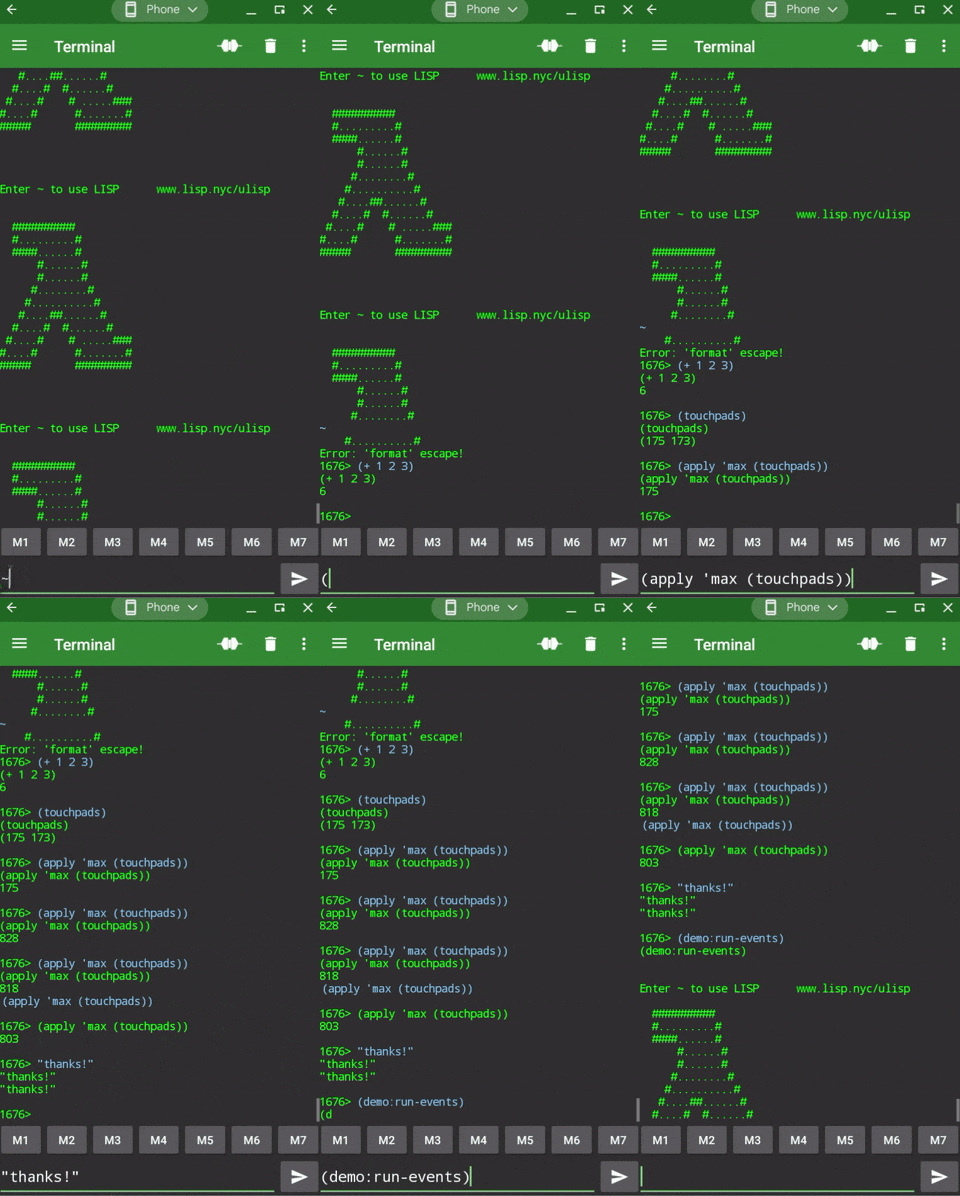
Leverage the convenience of effortless multitasking with the built-in Managed State Event Loop.
Combine timing, lighting and keys in countless ways and do amazing things!
#
Kick Things Off#
New to Lisp? Not a problem, you can get started Learning Lisp on your computer or on this device.
TODO add details about how to sign up for new interactive book
#
Connecting Android#
You may need a USB-A to USB-C adapter but if you're ready to go, install Serial USB Terminal.
You'll want to adjust the font to monospace and perhaps the size. Do this in Settings -> Terminal.
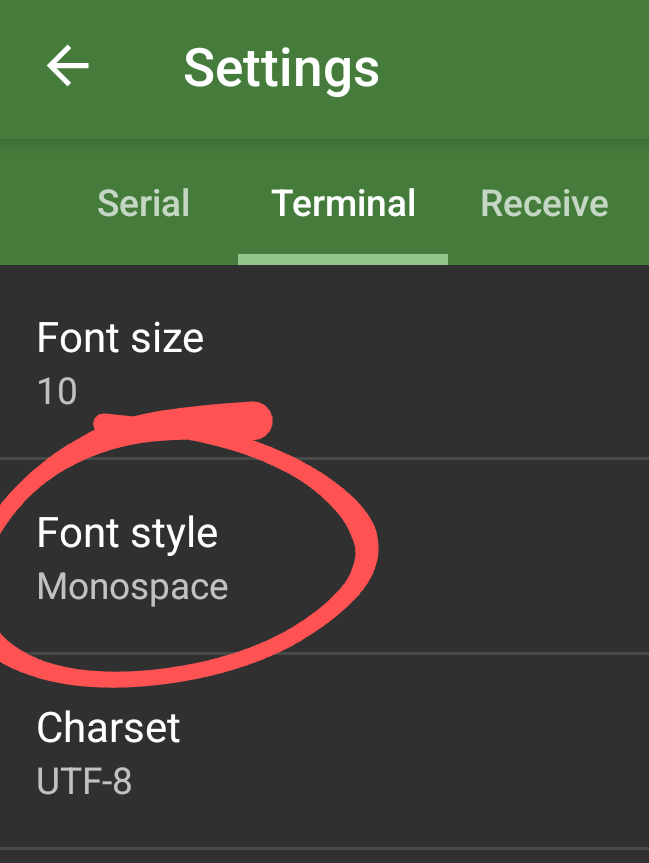
Then plug in your Neo Trinkey and connect!
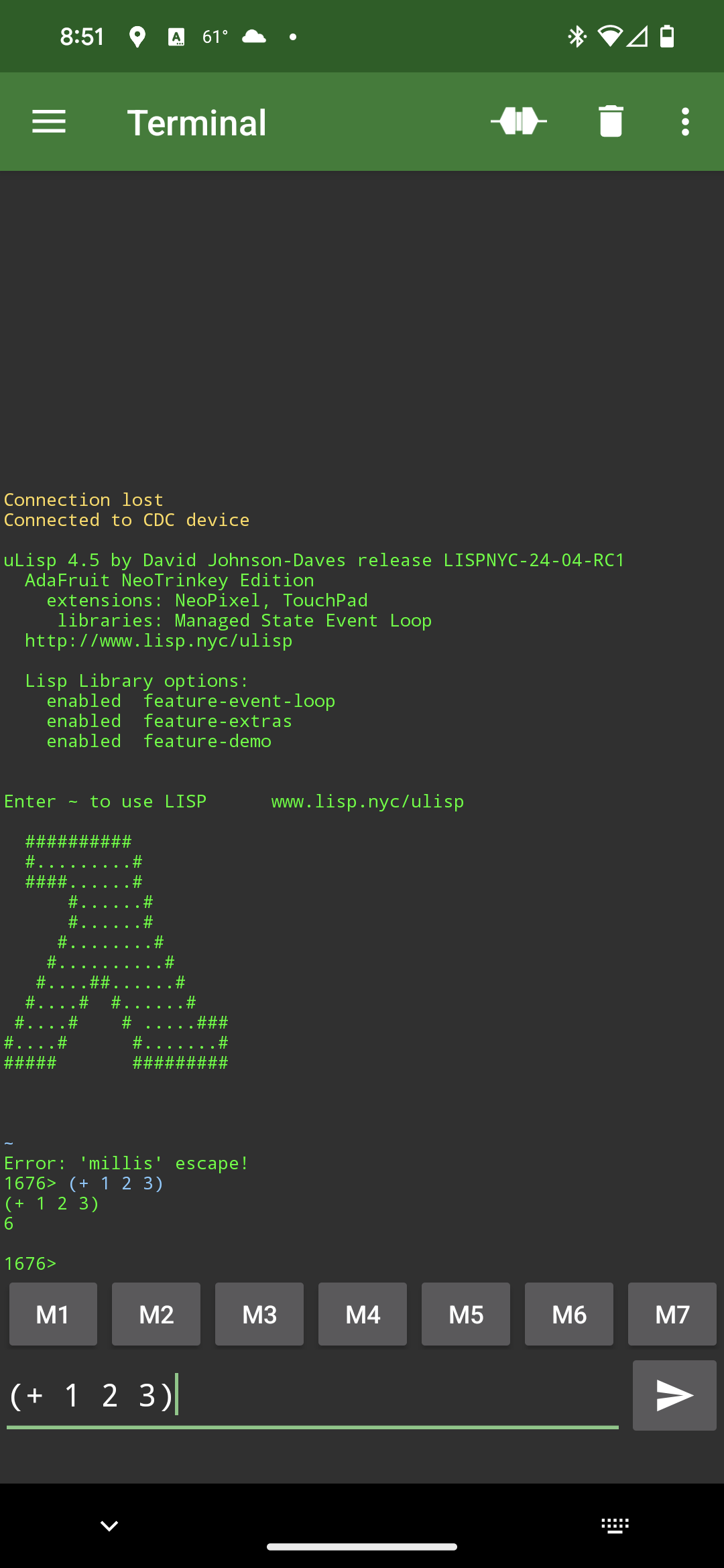
Enter tilde "~" to stop the demo.
Now you are in Lisp's famous REPL, the Read Evaluate Print Loop.
Send it commands to evaulate:
    (+ 1 2 3)
    "hello there"
You are now ready to party with uLisp!
#
Connecting PC#
The easiset way to get started on the PC using Windows, Linux or Mac is by using Visual Studio Code.
1. Download and install VS Code
2. Download the ulisp.code-profile
3. Within VS Code select File -> Preferences -> Profiles -> New Profile (drop down) -> Import Profile
4. Select File.. and then ulisp.code-profile
5. Create Profile and then ulisp
6. Select your new ulisp profile and select the tiiiiny checkmark to "Use this profile"
7. Hit CTRL-J and select the tab titled Serial Monitor
8. Within the Serial Monitor tab, make the following configuration changes. The port may be different on your machine:
  Port:        /dev/ttyACM0
  Baud rate:   9600
  Line ending: LF
9. Select Start Monitoring and enter:
  ~
  (+ 1 2 3)
Download and open the examples.lisp and start the party!
#
Connecting Chromebook#
Chromebooks are great! Most Chromebooks give you BOTH options of installing and running the Serial USB Terminal Android App or for the more advanced setting up Linux and using Visual Studio Code.
It's easiest to get started with the Serial USB Terminal Android App, install it, pulg and connect to your Neo Trinkey then follow the Android directions above.
#
Party with uLisp#
uLisp, or "micro-lisp" is a streamlined variant of Common Lisp that offers conventional programming techniques and also supports Functional Programming principles making it a versatile and enjoyable language to work with.
It's incredibly practical, straightforward to grasp and enjoyable some might even say it's the quintessential core of Common Lisp.
#
Pixel Party#
Your device packed with extra features making it even easier to use!
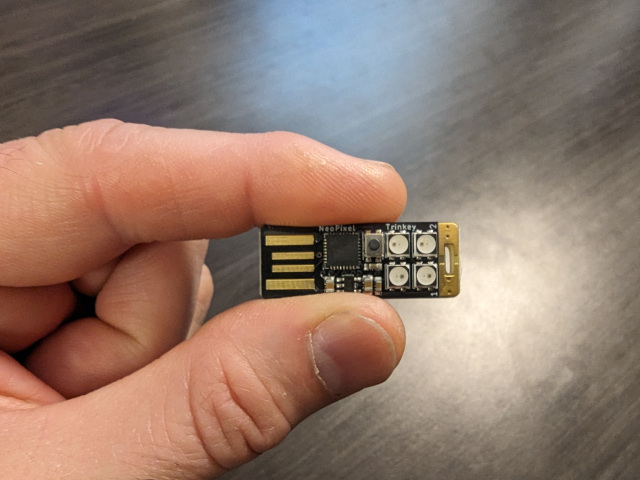
The four lights on your device are Neo Pixels. Each is capable of being individually addressed to display any color by blending simple shades of red, green and blue.
Easily set all the NeoPixels to the same color, provide values for red, green, and blue ranging from 0 (off) to 255 (very bright), like this:
    (pixels 64 0  0)  ; all red
    (pixels 0  64 0)  ; all green
    (pixels 0  0  64) ; all blue
    (pixels 64 0  32) ; all purple
    (pixels 0  0  0)  ; off
    (pixels)          ; also off
To address them individually, utilize the `(to-color)` function to generate distinct colors for each of the four Neo Pixels:
    (pixels
      (to-color 64 0 0)
      (to-color 0 64 0)
      (to-color 0 0 64)
      (to-color 64 0 32))
Or create and pass in a list of colors:
    (defvar my-colors (list
                        (to-color 64 0 0)
                        (to-color 32 0 0)
                        0
                        0))
    (pixels my-colors)
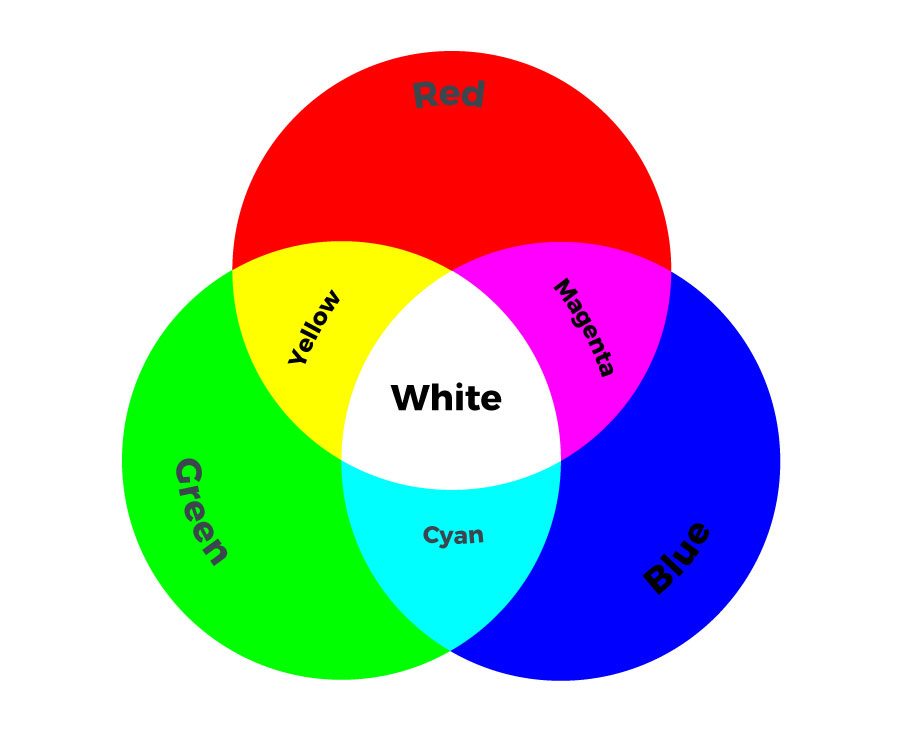
The colors displayed by red, green and blue LEDs are based on light where colors are created by combining different light sources. When these light sources overlap, they add together to produce new colors with full additive mixing creating white light. This is called Additive Color which is different than HTML-style colors you may have seen before.
#
DJ Touchpad Mashup#
Groove to the beat like a DJ, fingers dancing across the touchpads, translating dreams into reality through the rhythmic language of Lisp. Access the two labeled touchpads through the touchpads function, groove like this:
    ;; no args it returns a list of both touch devices
    > (touchpads)
    (547 789)

    ;; single argument returns the value of the respective device
    > (touchpads 1)
    547

    > (touchpads 2)
    789

    ;; get the highest value of either touchpad
    (apply 'max (touchpads))

    ;; are either being touched?
    ;; above 500 seems about right
    (if (< 500 (apply 'max (touchpads)))
          (format t "touched!") )

    ;; test loop
    (loop
      (format t "QT1: ~a  QT2:~a~%" (touchpads 1) (touchpads 2))
      (delay 100) )
#
Amp Up the Party#
Transform your tech into a personalized party powerhouse by customizing every aspect, from the LEDs to the buttons to the console output to reflect your unique style. With a touch of creativity and a dash of innovation, personalize this device as an expression of your persona and make it your own!
#
Party Lights#
Easily change the color of the lights and save it to run the next time you plug it in. Remember `to-color` expects red, green and blue. This simple modification rotates two low-level red lights:
    (defun mydemo ()
      (demo:run-events (list (to-color 4 0 0)
                             (to-color 2 0 0)
                             0 0)))

    (save-image 'mydemo)
The `save-image` function runs whatever function you give it when powered on. You can create and run anything you want!
#
Party State#
Ever wished you could do multiple things at once or make it look like you can?
Do you need to execute code while reading inputs?
Want to avoid messy, dangerous and expensive global state?
Then see what the Managed State Event Loop has to offer you!
#
Make Room for a Bigger Party#
When every byte of memory counts sometimes you just need more room. Unload various sections by setting some global values:
Unload the default demo:
(defvar feature-demo nil)
Unload the Managed State Event Loop, note that the demo depends on this:
(defvar feature-event-loop nil)
Unload the extra features. WARNING, these are the handy functions `pixels`, `to-color` and `to-rgb`, the demo also depends on this:
(defvar feature-extras nil)
After disabling the features, you need to save the state with `save-image` and give it a new function to run when you plug it in. This works if you're uninspired:
(save-image '(lambda() (format t "Not feeling the party.")))
#
Reset the Rave#
Sometimes, too much of a good thing can turn a party into compete mayhem. If you find yourself in a situation where you'd just like to stare over then you can erase everything and start over:
    (mapc 'makunbound (globals))
    (save-image)
Restart the device TWICE and you'll once again be back in the original demo, you're now starting over from scratch!
#
Devs After Party#
Whether you're a seasoned developer or just beginning your Lisp adventure, embrace the magic of this versatile language. With Lisp, you have the power to unlock new horizons, amplify your skills and revolutionize technology, one tiny device at a time. Let's code, innovate and redefine what's possible - in the world of Lisp the only limit is your imagination!
Here is the souuce code along with links to uLisp proper and everything you need for your Lisp-dev journey:
#
VS Code#
#
How to Hack with VS Code#
1. Open examples.lisp
2. Hit CTRL-J and select Serial Monitor
3. Make the following changes and select your port:
  port /dev/ttyACM0
  baud 9600
4. Select Start Monitoring and enter:
  ~
  (+ 1 2 3)
5. CTRL-J or click on examples.lisp
6. Move to the code you want to evaluate, and hit CTRL-L to select then CTRL-E to evaluate it!
#
Emacs: Party to the MAX!#
#
How to Hack with Emacs#
Add the dot-emacs.el to your dot emacs ensuring you have the correct port.
Run this to set it up:
M-x ulisp-setup-workspace
When you are at the end of an expression evaluate it with C-x e